A sleep trial targeted just the last 30 minutes before bed, not the whole day. In that 2020 randomized pilot, the phone-restriction group’s average reported time to fall asleep fell from 30.98 to 18.38 minutes over four weeks.
That’s a useful starting point for screen time management: protect a window, not an all-day quota. Your phone can be necessary for work or study without needing to follow you into every spare minute.

Protect the parts of your day that a daily total can’t distinguish.
Screen Time Management for Work and Study
Start with a commitment that already exists: your afternoon work block or the study session after dinner. Set distracting apps to be blocked automatically during that window, on the days it repeats. Keep the restriction tied to the commitment, not the whole day.
Before enabling the schedule, check which phone functions you genuinely need. Leave authentication, required messages, and course materials out of your blocked selection. One commenter in a WFH discussion on r/adhdwomen needed phone-based authentication several times an hour—a concrete reason not to block everything indiscriminately.
Breaks deserve a place in that decision. In a 2019 randomized experiment with 414 undergraduates, participants taking a phone-based shopping break solved fewer subsequent anagrams than those taking computer or paper breaks. But they solved more than participants who got no break at all.
Try keeping distracting apps blocked through short study breaks, rather than reopening them whenever you pause. The point is to protect the return to the assignment, not to work without stopping.
Give Bedtime Its Own Window
Add a separate window covering the final 30 minutes before your intended bedtime. Unlike the work block, this is a cue to leave the phone alone—not trade a blocked feed for an unblocked distraction.
The bedtime trial involved 38 university participants with poor sleep and used self-reported sleep outcomes. Researchers also used password-protected settings on some phones, reminders, and nightly compliance calls. That makes the window worth trying, but the result isn’t a forecast of what an app schedule alone will deliver.
Treat 30 minutes as a starting point from that trial, not a universal optimum. Keep this window separate from work or study, so changing a shift or a class doesn’t mean rebuilding your evening restriction.
Choose Schedules, Not Just a Daily Ration
When comparing screen time management apps, look for two things: recurring blocks around chosen hours and control over which apps they include.
If you want to automate those windows, BlockMyApps is one option: its Schedules turn blocks on and off automatically for a selected app group. Schedule setup starts by choosing that group.
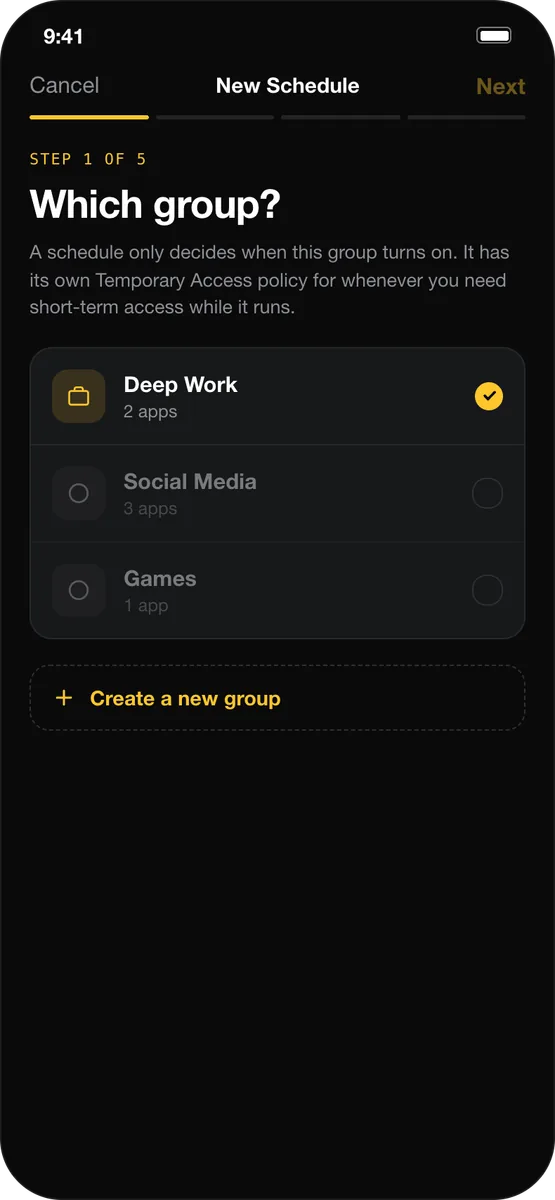
Choose the distractions first, then decide when their restriction should switch on.
Usage limits do a different job: they ration an app’s daily use. An allowance might still leave an app available at exactly the moment you meant to protect. For this system, start with Schedules rather than configuring both features just because they’re there.
For the broader approach, see how to reduce screen time without relying on willpower.
Here, the aim isn’t to finish the day with the smallest number. It’s to keep the phone useful during work or study—and leave the last half hour before bed out of its reach.